Securing REST APIs in ORDS with OAuth2

So, you’ve set up your ORDS services to query data between your apps. Great. There’s just one problem. It’s not secure! Anyone can access your sensitive data and pose a serious risk to the integrity of your app.
Now you may be asking “How can we fix this?”. That’s what this blog aims to answer.
DISCLAIMER: Like the previous blog in this series, we will be working with the RESTful services section in SQL workshop which has been deprecated.
Why is this an issue?
When designing applications, cybersecurity should always be at the forefront of your mind. There are far too many horror stories of careless devs leaving simple vulnerabilities in their apps, leading to catastrophic data leaks. With the rise of AI in recent years, cybersecurity has never been more important. In 2025 alone, the WEF reported an 87% increase in AI related cyber threats. So the simple answer is: it’s not worth the risk.
Looking at APIs specifically, the data exposed in them is often extremely sensitive; such as health or personal records. Not only can this lead to data leaks and vulnerabilities, but can also create huge financial risk or reputational damage when working with important clients. This is even more concerning when considering that APIs account for more than half of dynamic internet traffic, according to Cloudflare’s 2025 year in review.
Think of an API as a front door into your application; leaving them unsecured is like leaving your door wide open. So with that in mind, let’s look at how we can make sure our door stays locked.
Setting up authentication within REST APIs
Secure the data service
To start, navigate to the RESTful data services section where you have set up your API module. Here we will create a new role and a new privilege to use for authentication - these will be used to assign rights to the client. Open the new privilege and assign the role you just created along with your API module. In order to adhere to the principle of least privilege, it’s generally recommended that you create a separate role and privilege for each client that will need to access the API.
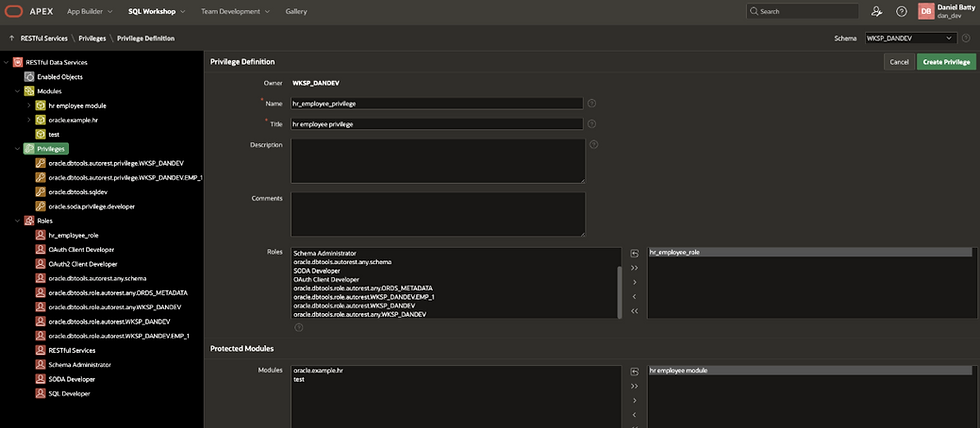
Now we need to do a bit of coding: switch to SQL commands and enter the following code block. Most of these parameters are arbitrary names, but make sure to replace ‘p_privilege_names’ and ‘p_role_name’ with the ones we created in the previous step.
BEGIN
   OAUTH.create_client (
       p_name             => 'CLIENT_NAME'
       ,p_grant_type      => 'client_credentials'
       ,p_owner           => 'OWNER_NAME'
       ,p_description     => 'A description'
       ,p_support_email   => 'example@email.com'
       ,p_privilege_names => 'your_privilege_name'
   );


   OAUTH.grant_client_role (
       p_client_name => 'CLIENT_NAME'
       ,p_role_name  => 'your_role_name'
   );


   COMMIT;
END;
Once this has been processed, run the following command: “SELECT * FROM user_ords_clients”. This should display a list of clients stored in our schema. Locate the client matching the name we just generated and take note of the ‘Client ID’ and Client Secret’ columns. These will act as the username and password for our authentication request to the API source. Make sure these are kept confidential as anyone could access the API with these credentials. It should look something like this:

After the data service has been secured, we need to test that everything is working as intended. First, copy the API endpoint URL into the browser: if setup was successful you should come to a page saying ‘Unauthorized’.
Test with Postman
To test that the client has been configured correctly we’ll now switch to postman. If you’re unfamiliar with postman, this step can be skipped; however I highly recommend downloading it if you’re frequently working with API requests. It gives a great insight into how API requests are sent behind the scenes, as well as allowing for easy testing before properly configuring your API in APEX. For a guide on how to do this, check out Postman’s documentation here.
Once we’re in postman we need to set up a new ‘POST’ request to the data service. For the URL, take the base path of your application (the API service) URL followed by ‘/oauth/token’. Then, switch to the ‘Body’ tab and enter ‘grant_type’ as the key, along with ‘client_credentials’ as the value.

Now switch to the ‘Authorization’ tab. Here we will enter our client ID and secret into the username and password columns respectively. Press send and watch the magic happen. You should receive a JSON body containing an access token. If so, your authentication has been configured successfully.
Configure the data source
We’re now ready to set up the client authentication for the API. To begin, head to the workspace utilities section and create a new remote server. Select ‘Authentication’ as the server type and enter the URL of API workspace.

Next, go back to workspace utilities and select web credentials. Enter a name and select ‘OAuth2 Client Credentials’ as your authentication type. Then, enter the client ID and secret that we generated earlier. Like we saw in postman, these will be used to request a token during an API call.

Finally, navigate to the REST data source inside your app's shared components. Under authentication, select the remote server and web credentials we just created. For the URL path enter ‘/oauth/token’.
For tips on setting up a REST data source, check out our previous blog on Configuring REST APIs in ORDS.

And that’s it! You should now have a working, and more importantly, secure API call within your application.
Final thoughts
After following this guide you should now be able to:
Secure your API data service
Use postman to test APIs
Configure your API data source
For more tips on APEX security, check out our blog on Securing Oracle Apex Apps: Report Row Actions.